Laptop & Computer Repairs in Pretoria North
Call us here
079 361 3979
Fast, Local Laptop & PC Repair Services in Pretoria North
Looking for reliable laptop or computer repairs in Pretoria North? Laptop Doctor provides fast, professional, and affordable repairs for laptops, desktop PCs, and MacBooks throughout Pretoria North and surrounding areas. We offer on-site call-outs to your home or office, or you can bring your device to our workshop for advanced repairs.
On-Site Computer Repairs in Pretoria North
We proudly provide on-site and workshop laptop & computer repairs across Pretoria North. You can choose what’s most convenient:
We come to your home or office
Or you bring your device to our workshop
Either way, you receive the same professional service.
Perfect for:
Work-from-home professionals
Students
Small businesses
Gamers
Home users
No need to travel or sit in traffic — we come to you.

Laptop Repair Services in Pretoria North
We repair all major laptop brands including Apple, HP, Dell, Lenovo, Asus, and Acer.
Our laptop services include:
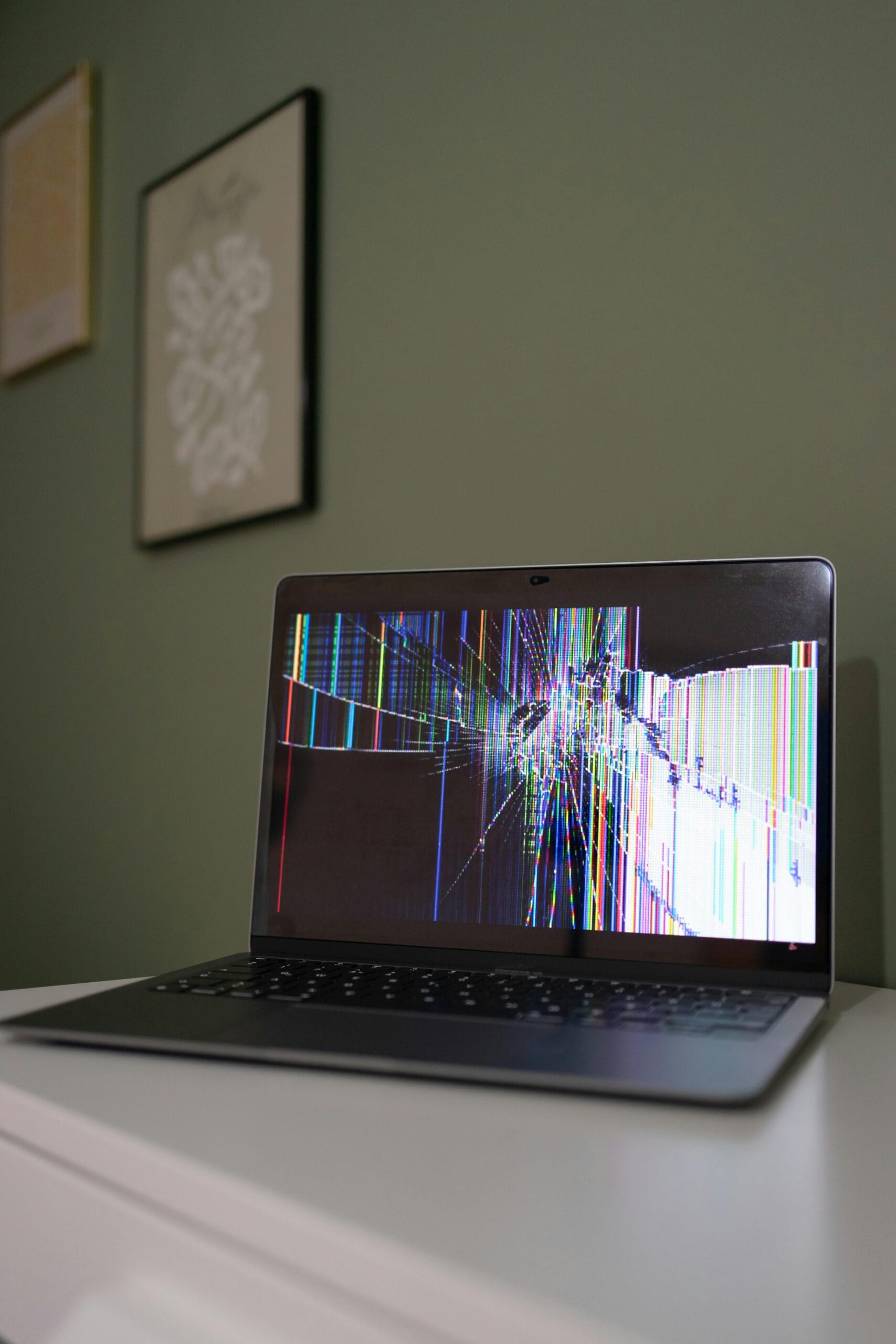
Laptop screen replacements
Battery & charging port repairs
Keyboard & trackpad replacement
Liquid damage cleaning
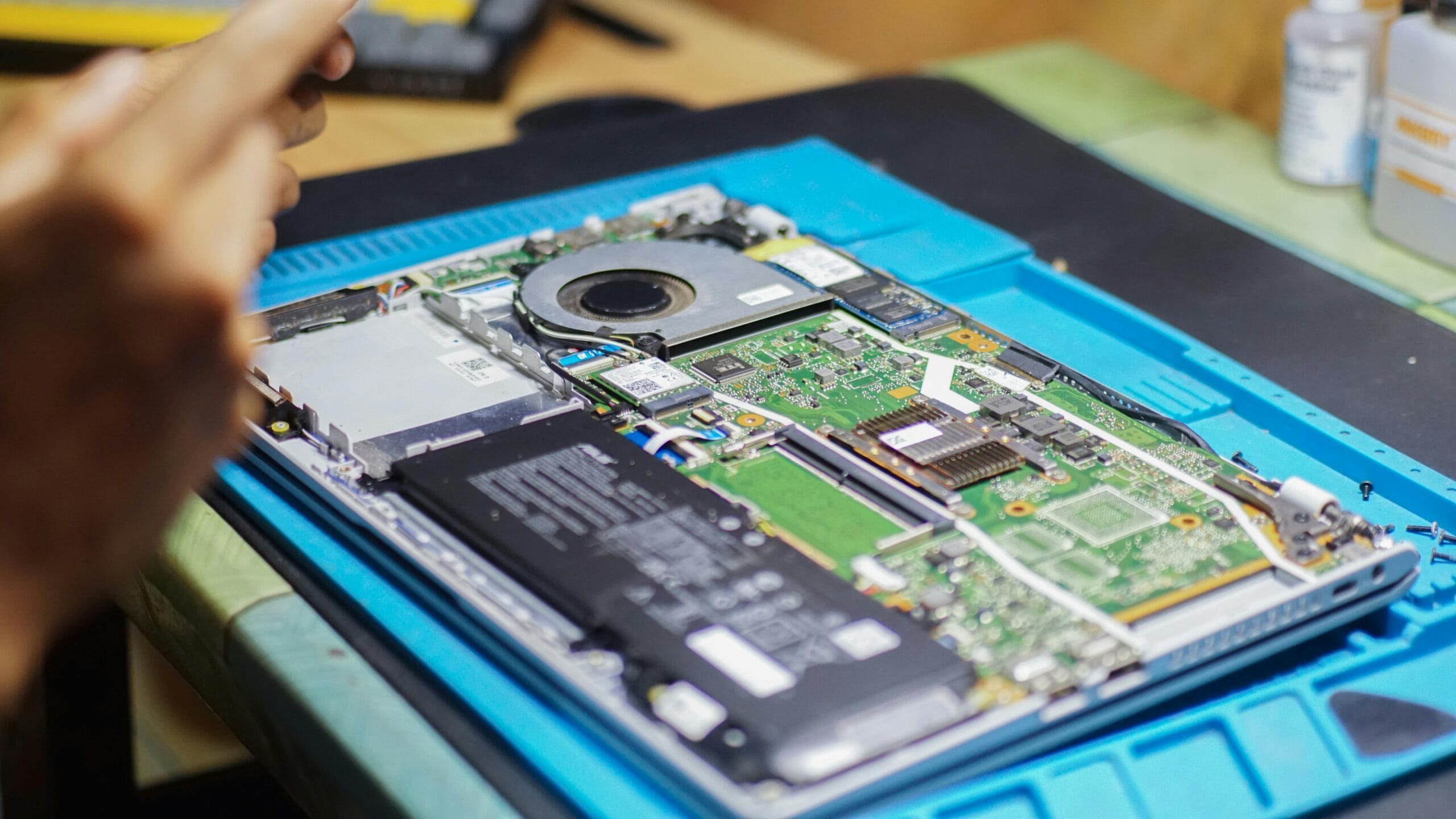
Overheating & fan servicing
Virus & malware removal
Windows & macOS reinstallations
Data recovery & SSD upgrades
If your laptop is slow, broken, or won’t turn on — we can help.

Desktop Computer & Gaming PC Repairs in Pretoria North
We also specialise in desktop computer repairs and gaming PC upgrades.
Services include:
Slow PC tune-ups
SSD & RAM upgrades
Graphics card upgrades
Power supply replacement
Motherboard diagnostics
Windows troubleshooting
Business computer support
Whether it’s a home PC or high-performance gaming computer, we’ll get it running like new.

Why Pretoria North Residents Choose Us
✔ Fast turnaround (24–48 hours for most repairs)
✔ Honest quotes before repairs begin
✔ High-quality replacement parts
✔ Experienced technicians
✔ Local Pretoria service you can trust
Please note we also service other areas for laptop and computer repairs: Amandasig, Dorandia, Florauna, Karenpark, Montana, Ninapark, Rosslyn, Wolmer, Pretoria North.

Laptop FAQ
Q: My laptop was splashed with water/coffee. What should I do immediately before bringing it in?
A: Turn it off instantly and unplug the charger. Do not try to turn it back on to “test” it, as this causes short circuits. Flip the laptop upside down like a tent to keep liquid away from the motherboard, and bring it to us as soon as possible. Avoid using rice, as it deposits dust and debris inside the components.
Q: How do I know if my laptop battery needs replacement or if it’s a charger problem?
A: If your laptop only works when plugged into the wall, or if Windows warns you with a “Service Battery” status, the battery likely needs replacement. If the laptop refuses to charge entirely, doesn’t light up when plugged in, or the charging cable feels loose inside the port, it is usually a faulty charging port (DC jack) or adapter.
: Can a cracked laptop screen be repaired, or does the entire display need to be replaced?
A: Modern laptop screens are sealed units, meaning the LCD or LED panel itself must be replaced if cracked or bleeding ink. However, we do not need to replace the entire top lid assembly or the housing—just the internal screen display panel, which keeps the repair highly affordable.
Q: Why is my laptop running extremely hot and making a loud buzzing noise?
A: This is usually caused by dust buildup blocking the cooling vents, or a failing internal cooling fan. When airflow is blocked, the thermal paste that transfers heat away from your processor dries out, causing the laptop to overheat and slow down to protect itself. A professional fan service and thermal paste replacement resolves this.
Q: Is it worth upgrading an older laptop, or should I just buy a new one?
A: If your laptop is less than 5 to 6 years old and has a solid chassis, upgrading from a mechanical hard drive to a Solid State Drive (SSD) and increasing the RAM can make it up to 5 times faster. This gives it a new lease on life for a fraction of the cost of buying a new machine.
Desktop PC & Gaming Computer FAQ
Q: My computer turns on, the fans spin, but there is no display on the monitor. What is wrong?
A: This common issue is usually caused by loose or dirty RAM modules, a failing power supply unit (PSU), or a faulty graphics card. Sometimes, it is as simple as the monitor cable being plugged into the motherboard’s video port instead of the dedicated graphics card port at the bottom of the tower.
Q: Why does my desktop PC randomly shut down or restart while I am gaming or working?
A: Random shutdowns under heavy workloads are almost always a safety measure triggered by component overheating (thermal throttling) or an unstable Power Supply Unit (PSU). Dust buildup in the CPU heatsink, dried thermal paste, or a graphics card drawing more power than the PSU can handle are the typical culprits.
Q: What is the difference between upgrading my RAM and upgrading my storage drive (SSD)?
A: Upgrading your RAM allows your computer to handle more tasks at the same time without slowing down, which is perfect for multitasking, gaming, and heavy web browsing. Upgrading to a Solid State Drive (SSD) improves the overall speed of the computer, making Windows boot up in seconds and causing apps and games to load instantly.
Q: My computer is making a clicking or loud grinding noise. Is it dangerous to keep using it?
A: Yes, you should back up your data and turn it off. A clicking noise usually indicates a mechanical hard drive is failing, which can lead to permanent data loss. A loud grinding or rattling noise is usually a failing cooling fan. While a bad fan won’t destroy data, it can cause components to overheat quickly.
Q: Can you build a custom desktop PC for gaming or office work if I provide the parts list?
A: Yes. We offer professional custom PC assembly services. Whether you want a high-performance gaming rig with liquid cooling and RGB lighting or a reliable, budget-friendly office workstation, we assemble the system, manage the cables cleanly, update the BIOS, install the operating system, and run stability tests.